Keep Update

Enter your email address:

Delivered by FeedBurner

Subscribe to Blogging Arena by Email
Showing posts with label Tutorial Blogspot. Show all posts

Monday, November 21, 2011

How To Create Page Number Navigation on Blogspot.com

On this occasion I will try to share simple tips to beautify the look of your blog. The following tips are ways How To Make Page Number Navigation. With the following menu will make the visitors and readers of your blog is easier to know the content of your blog. Here are the steps :

1. Login to your blogger dashboard, then select Design > Edit HTML, do not forget to check the Expand Widget Templates.
 2. Use the search tool ( Ctrl + F ) and find the code ]]></b:skin>, then place the following code before the code ]]></b:skin>
.showpageArea a {
text-decoration:underline;
}
.showpageNum a {
text-decoration:none;
border: 1px solid #cccccc;
margin:0 3px;
padding:3px;
}
.showpageNum a:hover {
border: 1px solid #cccccc;
background-color:#cccccc;
}
.showpagePoint {
color:#333;
text-decoration:none;
border: 1px solid #cccccc;
background: #cccccc;
margin:0 3px;
padding:3px;
}
.showpageOf {
text-decoration:none;
padding:3px;
margin: 0 3px 0 0;
}
.showpage a {
text-decoration:none;
border: 1px solid #cccccc;
padding:3px;
}
.showpage a:hover {
text-decoration:none;
}
.showpageNum a:link,.showpage a:link {
text-decoration:none;
color:#333333;
}
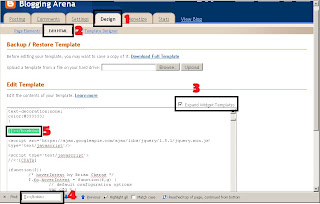

3. After that, find again the following code </body>, and place the following code before the code </body>
 <b:if cond='data:blog.pageType != &quot;item&quot;'>
<script type='text/javascript'>
var pageCount=5;
var displayPageNum=5;
var upPageWord =&#39;Previous&#39;;
var downPageWord =&#39;Next&#39;;
</script>
<script src='http://blogergadgets.googlecode.com/files/blogger-page-navi.v1.js' type='text/javascript'/>
</b:if>
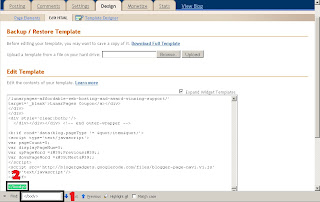
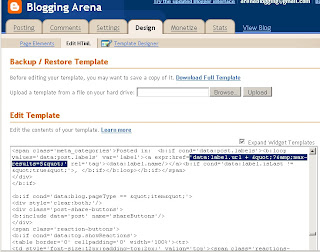
4. And last, find again the code 'data:label.url', and replace the code 'data:label.url' with the code bellow
'data:label.url + &quot;?&amp;max-results=5&quot;'
 
5. After that save your template, and the result will be like the following picture


A few simple tips from me, may be useful to beautify your blog. Thank you ^^

Sunday, November 20, 2011

How To Create Page Menu and Sub Page Menu Based On Label On Blogspot.com


On this occasion, I 'll give a try to share tips to beautify your blog. Tips that I will share tips on making the Page Menu and Sub ​​Menu page based on the label that you give to each post on your blogspot, as in the header of this blog.

Here are the steps :
1. Go to your Dashboard menu select Design > Edit HTML , do not forget to check the Expand Widget Templates ,
2. Use the search tool ( Ctrl+ F ) to search for code <div id='content-wrapper'>

3. Copy the following code and place it just above the code <div id='content-wrapper'>

<li><a href='#'>Blogspot</a>
<ul class='children'>
<li><a href='label blog URL'>Free Template</a></li>
<li><a href='label blog URL'>Tips and Trick</a></li>
<li><a href='label blog URL'>Tutorial</a></li>
</ul>
</li>

<li><a href='#'>Wordpress</a>
<ul class='children'>
<li><a href='label blog URL'>Free Template</a></li>
<li><a href='label blog URL'>Tips and Trick</a></li>
<li><a href='label blog URL'>Tutorial</a></li>
</ul>
</li>

<li><a href='label blog URL'>SEO</a>
</li>
       
</ul>
</div>
</div>
<div style='clear:both;'/>

Note : code red is the URL address from your post labels. Code pink is the name of the Page Menu. And the green is a Sub Page Menu.

4. Save your changes. To view the results please preview your blog.

Good luck and hopefully useful to you. Thank you for your visit ^^

Saturday, November 19, 2011

How To Create Menu Add Gadget On Blogspot.com

On this occasion I will give simple tips how to make the menu Add Gadget on your blogspot Page Template. By adding this menu, you can add gadgets to beautify your blog. Here are the steps:

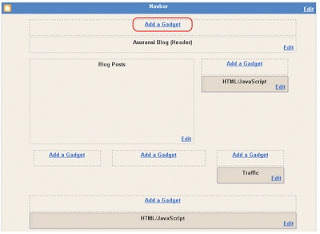
Add Gadget to add in the header. Go to your blogspot dashboard., Then select Design > Edit HTML, and do not forget to check the Expand Widget Templates
Before Changes
1. Use the search tool ( Ctrl+F ), and find this code <div id='header-wrapper'>. And follow this picture below

2. Change the code <b:section class='header' id='header' maxwidgets='1' showaddelement='no'> becomes <b:section class='header' id='header' maxwidgets='5' showaddelement='yes'>. Note: Figures "5" shows the number of gadgets that you can enter. Replace your own.
3. Save your changes and the results are as shown below.
 After Changes
Add Gadget to add in the main body (posting). Go to your blogspot dashboard., Then select Design > Edit HTML, and do not forget to check the Expand Widget Templates. Same like in header
1. Use the search tool ( Ctrl+F ), and find this code <div id='main-wrapper'>. And follow this picture below
<b:section class='main' id='main' showaddelement='yes'>
2. Change the code <b:section class='main' id='main' showaddelement='no'> becomes <b:section class='main' id='main' showaddelement='yes'>
3. Save your changes and check your Page Element.

Good luck and hopefully useful for you. Thank You

Friday, November 18, 2011

How To Create and Setting Feed Burner On Your

feedburnerlogo

Feed Burner is a tool to feed your blog to make it easier for the visitors of your blog to always know the latest developments and post your blog. Additionally Feed Burner as well as one of your SEO tools to further popularize your blog. On this occasion I will try to share how to make the Feed Burner.

1. Got to Feed Burner sites

feedburnerRegister

2. Sign Up and fill out the registration form all boxes

3. Initial setting your feed burner as picture below

feedburner1

feedburner2

4. Name the title of the feed and change the address in accordance with your feed address,

ex: arena-blogging.blogspot.com/feed

feedburner3

keep Next

feedburner4

5. Check the box as picture below

feedburner5

6. Choose Publiceze tab

feedburner6

7. Choose Email Subscription in the left side bar and click Active

feedburner7

8. Copy the HTML code and put in your HTML/Javascript gadget in your Blogspot template

feedburner8

9. Finish and check your blog.

Good luck and hopefully useful for you. Thanks ^^

Thursday, November 17, 2011

How To Create Chat Box on Blogspot.com

On some blogs, you often find a chat box that can facilitate the visitors to communicate directly with the owner or with other visitors who are online. There are several sites that provide chat box for your blog, including the:

1. ShoutMix

ChatBox1

Please sign up Here. After registering, get and copy the code and then go into your blogspot dashboard. Add Gadget and then HTML / Javascript, and then copy the code in the box  your HTML gadget.

2. CBox

ChatBox2

Please sign up Here. After registering, get and copy the code and then go into your blogspot dashboard. Add Gadget and then HTML / Javascript, and then copy the code in the box  your HTML gadget.

And many more other sites. Good luck and hopefully useful for you. Thank You ^^

How To Create Recent Comments on Blogspot.com

On this occasion I will try to share a script that I got then I have tried and been successful. On this occasion I will try to share a script to display Recent Comment on your blogspot gadgets.
1. Select Design and then Page Elements, then select the widget HTML / Javascript in your sidebar.
2. Then fill in with the script below.

<ul><script style="text/javascript">
function showrecentcomments(json) {
for (var i = 0; i < 5; i++) {
var entry = json.feed.entry[i];
var ctlink;
var commentdate = entry.published.$t;
var cdyear = commentdate.substring(0,4);
var cdmonth = commentdate.substring(5,7);
var cdday = commentdate.substring(8,10);
var monthnames = new Array();
monthnames[1] = "Jan";
monthnames[2] = "Feb";
monthnames[3] = "Mar";
monthnames[4] = "Apr";
monthnames[5] = "May";
monthnames[6] = "Jun";
monthnames[7] = "Jul";
monthnames[8] = "Aug";
monthnames[9] = "Sep";
monthnames[10] = "Oct";
monthnames[11] = "Nov";
monthnames[12] = "Dec";

if (i == json.feed.entry.length) break;
for (var k = 0; k < entry.link.length; k++) {
if (entry.link[k].rel == 'alternate') {
ctlink = entry.link[k].href;
break;
}
}
ctlink = ctlink.replace("#", "#comment-");
var ptlink = ctlink.split("#");
ptlink = ptlink[0];
var txtlink = ptlink.split("/");
txtlink = txtlink[5];
txtlink = txtlink.split(".html");
txtlink = txtlink[0];
var pttitle = txtlink.replace(/-/g," ");
pttitle = pttitle.link(ptlink);
if ("content" in entry) {
var comment = entry.content.$t;}
else
if ("summary" in entry) {
var comment = entry.summary.$t;}
else var comment = "";
var re = /<s[^>]*>/g;
comment = comment.replace(re, "");

document.write('<li>');
if (comment.length < 50) {
document.write('<div style="font-size:90%;background-color: #E8EEFA;border: #C3D9FF 1px dashed;margin-right:5px">' + monthnames[parseInt(cdmonth,10)] + ' ' + cdday);
document.write(' - ' + entry.author[0].name.$t + ' commented on');
document.write(' ' + pttitle + ':</div>');
document.write(comment);
}
else
{
comment = comment.substring(0, 50);
var quoteEnd = comment.lastIndexOf(" ");
comment = comment.substring(0, quoteEnd);
document.write('<div style="font-size:90%;background-color: #E8EEFA;border: #C3D9FF 1px dashed;margin-right:5px">' + monthnames[parseInt(cdmonth,10)] + ' ' + cdday);
document.write(' - ' + entry.author[0].name.$t + ' commented on');
document.write(' ' + pttitle + ':</div>');
document.write(comment + '...<a href="' + ctlink + '">(more)</a>');
}
}
document.write('</li>');
}
</script>
<script src=http://arena-blogging.blogspot.com/feeds/comments/default?alt=json-in-script&callback=showrecentcomments>
</script></ul>
<noscript>You need to enable JavaScript to read this.</noscript>

Note: For writing the green "5 " indicates how many comments you wish to view. And code blue "

http://arena-blogging.blogspot.com/feeds/comments/default?alt=json-in-script&callback=showrecentcomments  " indicates the address of your blog.

Good luck and hopefully useful to you. Thank You ^^

Monday, November 14, 2011

How To Create High Light Box On Blogspot.com

Often we see someone there in the post boxes are different colors, usually containing the HTML code or something you'll enjoy. For example as shown below.

I will discuss how to make the box (High Light Box )

1. Go into your Blogspot Dashboard, and create a new posting ( Posting > New Post ) 
2. Select the Edit HTML box top right corner of the box new posts 
3. Write the following code in the Edit HTML box

<div style="background:#00F5F5; border:1px dashed #3D3DFF; padding:5px;">
Write the text you want displayed here
</div>

4. To change the color of the color code you can see Here , and replace the green code "#3D3DFF" with the color code you want
5. Save and back to Compose box top right corner of the box new posts.

Note: You have to make High Lights box this first before continuing your writing, so allow you to enter and determine the position of the code above in the Edit HTML.

Good luck and hopefully useful for you.
Thank You ^^

Sunday, November 13, 2011

How To Change Blog Title with Title Post

On this occasion I will discuss about how to change our blog title to match the title of our posts. It is simple but can increase the number of visitors because of ease " Google Search " to read our blog post.

1. Go into your blogspot dashboard, then select Design then Edit HTML
2. Use the search tool ( Ctrl F ), and look for the code <title><data:blog.title/></title&gt;, do not forget to check the Expand Widget Templates
3. Replace the code <title><data:blog.title/></title&gt; with the code below:

<b:if cond='data:blog.pageType == "index"'><title><data:blog.title/></title>
<b:else/>
<title><data:blog.pageName/></title>
</b:if>


4. Save and finish.
Good luck and hopefully useful for you
Thank You ^^

How To Create YMessenger Widget on Blogpot.com

Some site / web or blog that already has a lot of visitors or web / site is the means of sales (internet marketing) will definitely need a gadget that indicates the owner is no place or not ( online / offline ). This is needed so that the visitors / customers can directly communicate with the site owner / web or blog online. This is indeed a simple but very useful to make visitors feel comfortable and happy to visit your blog.
On this occasion, I will discuss how to create a gadget YMessenger into your blog seperti pada gambar berikut.


1. Log into your Blogspot dashboard, select Design then Page Elements. 
2. On the sidebar select Add Gadget and then select the gadget HTML/Javascript. Then enter the following code in the column gadget HTML/Javascript, and save it.

<a href="ymsgr:sendIM?Your YM Name"> <img src="http://opi.yahoo.com/online?u=Your YM Name&amp;m=g&amp;t=2&amp;l=us"/>
</a>

Note: In the blue code "Your YM Name", replace the code with your account name YMessenger. 


Very easy, good luck and hopefully useful for you. 
Thank you ^^

How To Create Related Post Under Single Post on Blogspot.com

Related Post befungsi allows visitors to browse your blog. Related posts are often encountered at the end of single posts. For that I will try to share tips for making Related Post on Blogspot.com.


The following steps:
1. Log into your Blogspot dashboard, then select Design and Edit HTML,
2. Use the search tool ( Ctrl+F ), and find this code <data:post.body/>. Put the following CSS code right under the code <data:post.body/>

<b:if cond='data:blog.pageType == "item"'>
<div class='similiar'>
<div class='widget-content'>
<h3>Related Post</h3>
<div id='data2007'/><br/><br/>
<script type='text/javascript'>
var homeUrl3 = &quot;<data:blog.homepageUrl/>&quot;;
var maxNumberOfPostsPerLabel = 4;
var maxNumberOfLabels = 10;
maxNumberOfPostsPerLabel = 100;
maxNumberOfLabels = 3;
function listEntries10(json) {
var ul = document.createElement(&#39;ul&#39;);
var maxPosts = (json.feed.entry.length &lt;= maxNumberOfPostsPerLabel) ?
json.feed.entry.length : maxNumberOfPostsPerLabel;
for (var i = 0; i &lt; maxPosts; i++) {
var entry = json.feed.entry[i];
var alturl;
for (var k = 0; k &lt; entry.link.length; k++) {
if (entry.link[k].rel == &#39;alternate&#39;) {
alturl = entry.link[k].href;
break;
}
}
var li = document.createElement(&#39;li&#39;);
var a = document.createElement(&#39;a&#39;);
a.href = alturl;
if(a.href!=location.href) {
var txt = document.createTextNode(entry.title.$t);
a.appendChild(txt);
li.appendChild(a);
ul.appendChild(li);
}
}
for (var l = 0; l &lt; json.feed.link.length; l++) {
if (json.feed.link[l].rel == &#39;alternate&#39;) {
var raw = json.feed.link[l].href;
var label = raw.substr(homeUrl3.length+13);
var k;
for (k=0; k&lt;20; k++) label = label.replace(&quot;%20&quot;, &quot; &quot;);
var txt = document.createTextNode(label);
var h = document.createElement(&#39;b&#39;);
h.appendChild(txt);
var div1 = document.createElement(&#39;div&#39;);
div1.appendChild(h);
div1.appendChild(ul);
document.getElementById(&#39;data2007&#39;).appendChild(div1);
}
}
}
function search10(query, label) {
var script = document.createElement(&#39;script&#39;);
script.setAttribute(&#39;src&#39;, query + &#39;feeds/posts/default/-/&#39;
+ label +
&#39;?alt=json-in-script&amp;callback=listEntries10&#39;);
script.setAttribute(&#39;type&#39;, &#39;text/javascript&#39;);
document.documentElement.firstChild.appendChild(script);
}
var labelArray = new Array();
var numLabel = 0;
<b:loop values='data:posts' var='post'>
<b:loop values='data:post.labels' var='label'>
textLabel = &quot;<data:label.name/>&quot;;
var test = 0;
for (var i = 0; i &lt; labelArray.length; i++)
if (labelArray[i] == textLabel) test = 1;
if (test == 0) {
labelArray.push(textLabel);
var maxLabels = (labelArray.length &lt;= maxNumberOfLabels) ?
labelArray.length : maxNumberOfLabels;
if (numLabel &lt; maxLabels) {
search10(homeUrl3, textLabel);
numLabel++;
}
}
</b:loop>
</b:loop>
</script>
</div>
</div>
</b:if>

3. save your changes and see the results.

Good luck and hopefully useful for you.
Thank You ^^

How To Create Menu Tab View on Blogspot.com

On this occasion I will try to share tips on how to create a Tab View Menu as shown below. Menu Tab View widget is able to save our place, so that we can include more widgets anymore. 


Here are the steps.
1. Log into your blogspot Dashboard, then select Design then Edit HTML. 
2. Use the search ( Ctrl+F ) and find this code "]]></b:skin>" without the quotation marks. Do not forget to check the Expand Widget Templates
3. Then enter the following CSS code right above the code ]]></b:skin>


div.TabView div.Tabs
{
height: 24px;
overflow: hidden;
}
div.TabView div.Tabs a
{
float: left;
display: block;
width: 90px; /* Main Menu Top Width */ text-align: center;
height: 24px; /* Height Main Menu Top */
padding-top: 3px;
vertical-align: middle;
border: 1px solid #000; /* Top Menu border color*/
border-bottom-width: 0;
text-decoration: none;
font-family: "Times New Roman", Serif; /* Main Menu Top Fonts */
font-weight: 900;
color: #000; /* On the Main Menu Font Color */ 
}
div.TabView div.Tabs a:hover, div.TabView div.Tabs a.Active
{
background-color: #FF9900; /* On the Main Menu background color */
}
div.TabView div.Pages
{
clear: both;
border: 1px solid #6E6E6E; /* Main Box border color */
overflow: hidden;
background-color: #FF9900; /*Main background color box*/
}
div.TabView div.Pages div.Page
{
height: 100%;
padding: 0px;
overflow: hidden;
}
div.TabView div.Pages div.Page div.Pad
{
padding: 3px 5px;
}

Note : You can set the display view menu tab on the texts of the blue

4. Use the search tool ( Ctrl+F ) and find the following code </head>, then put the following CSS code right above the code </head>

<script src='http://kendhin.890m.com/blog/tabview.js' type='text/javascript'/>

Save, and Edit HTML process is completed


5. Return to your blogspot dashboard, and select Design then Page Elements. Then on the sidebar and then select Add Gadget HTML / Javascript, and attach the following script code in an Gadget column HTML  /Javacript

<form action="tabview.html" method="get">
<div class="TabView" id="TabView">
<div class="Tabs" style="width: 350px;">
<a>Tab 1</a>
<a>Tab 2</a>
<a>Tab 3</a>

</div>
<div class="Pages" style="width: 350px; height: 250px;">

<div class="Page">
<div class="Pad">
Tab 1.1 <br />
Tab 1.2 <br />
Tab 1.3 <br />

</div>
</div>

<div class="Page">
<div class="Pad">
Tab 2.1 <br />
Tab 2.2 <br />
Tab 2.3 <br />

</div>
</div>

<div class="Page">
<div class="Pad">
Tab 3.1 <br />
Tab 3.2 <br />
Tab 3.3 <br />

</div>
</div>


</div>
</div>
</form>

<script type="text/javascript">
tabview_initialize('TabView');
</script>


Note: In the code pink ( 250px ) is the height and width of the tab view. Code blue (<a>Tab 1</a>) is existing text in the Main Menu. And the black bold code (Tab 3.3 <br />) is the content of the Tab View ( you can fill it with links, images, banners, scripts, etc. )

Good luck and hopefully useful for you.
Thank You

Saturday, November 12, 2011

Setting Comment On Blogspot.com


In order for your blog to work optimally, then the first step is you have to do the initial settings that can improve the working and the appearance of your blog. 
On this occasion I will try to share tips for you on how to setup Comments on blogspot. It looks simple but very meaningful, comments in blogs become an important tool for building and looking for a relationship with visitors and expand the network of your backlinks.
Here are the steps for setting comment on blogpot.

1. Log into your Blogspot Dashboard, select Settings and then Comments, then do the settings according to the oval marked red have been given in the figure below


Note: select Anyone in the Who Can Comment?, Is that everyone who visits your blog can directly comment on your posts.


2. Next select Always on Comment moderation, then select Yes in the Show word verification for comments?, And then fill in your email address in order. Then click on the option Save Settings


Note: In the Comment Moderation section, you can choose Never, so that any comments written by visitors can be displayed directly on your blog, but for the safety of your blog from spam, you are advised to choose Always in order to enter any comments you may strain the first, for blog comments you avoid comment spam.

A few of my writing, hopefully useful for those of you who in the world of blogging newbies like me. thank you^^